

 English
WT99P461-S1 Flashing Guide
Update history
| Date | Version | Author | Update content |
|---|---|---|---|
| 2026-08-18 | 1.0.0 | Pail | Initial document release |
The onboard ESP32-P4 and ESP32-C61 on the WT99P461-S1 development board have separate flashing interfaces and use different flashing methods.
Flashing the ESP32-P4
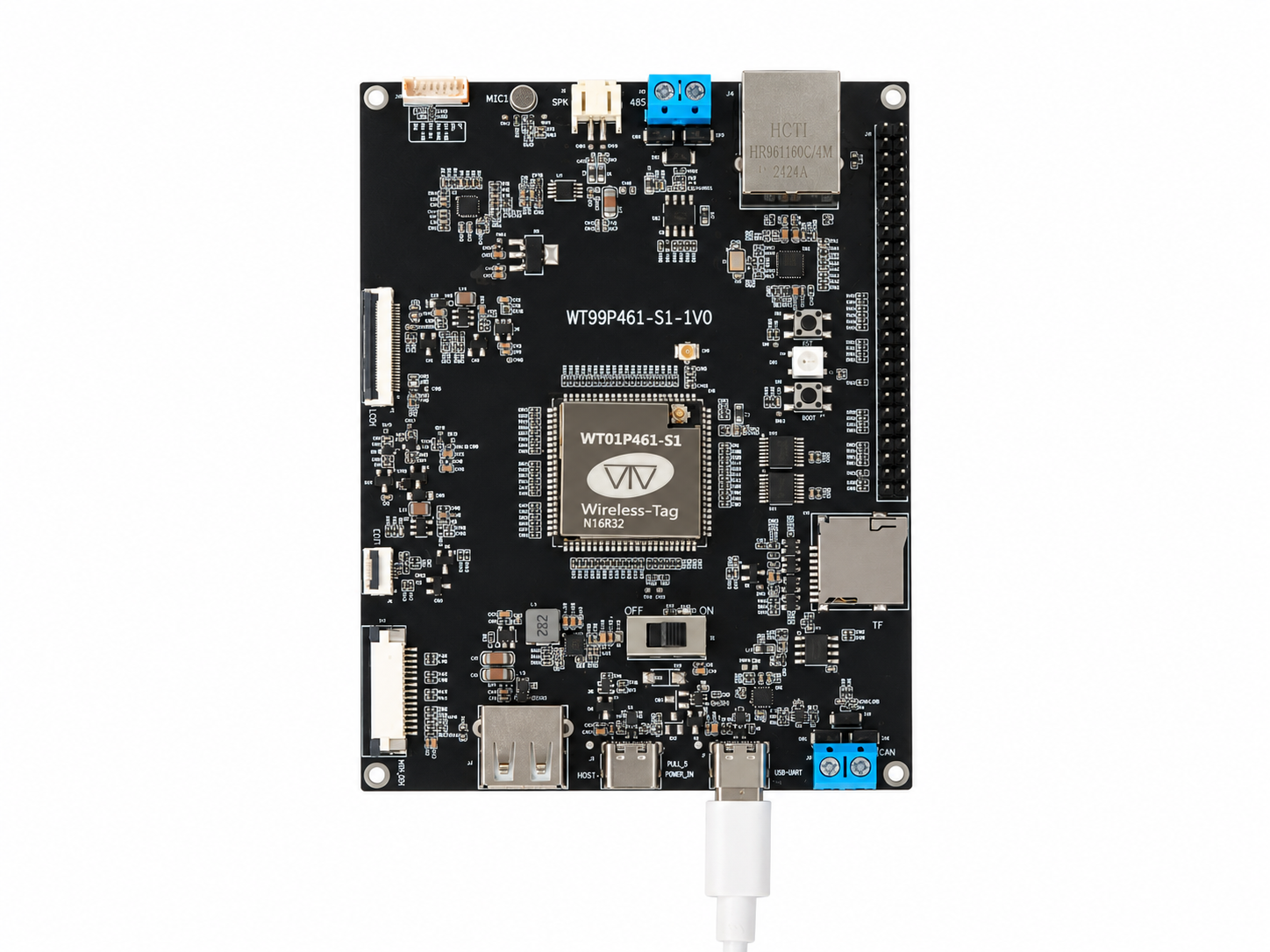
Connect the USB-UART port at J1 on the development board to your computer using a USB Type-C data cable, as shown below. Hold down the Boot button, briefly press the EN button, and then release Boot to put the ESP32-P4 into download mode. You can then use the ESP-TOOL application on your computer to flash firmware to the ESP32-P4 over the serial port.
ESP32-P4 Flashing Connection Diagram
Flashing the ESP32-C61
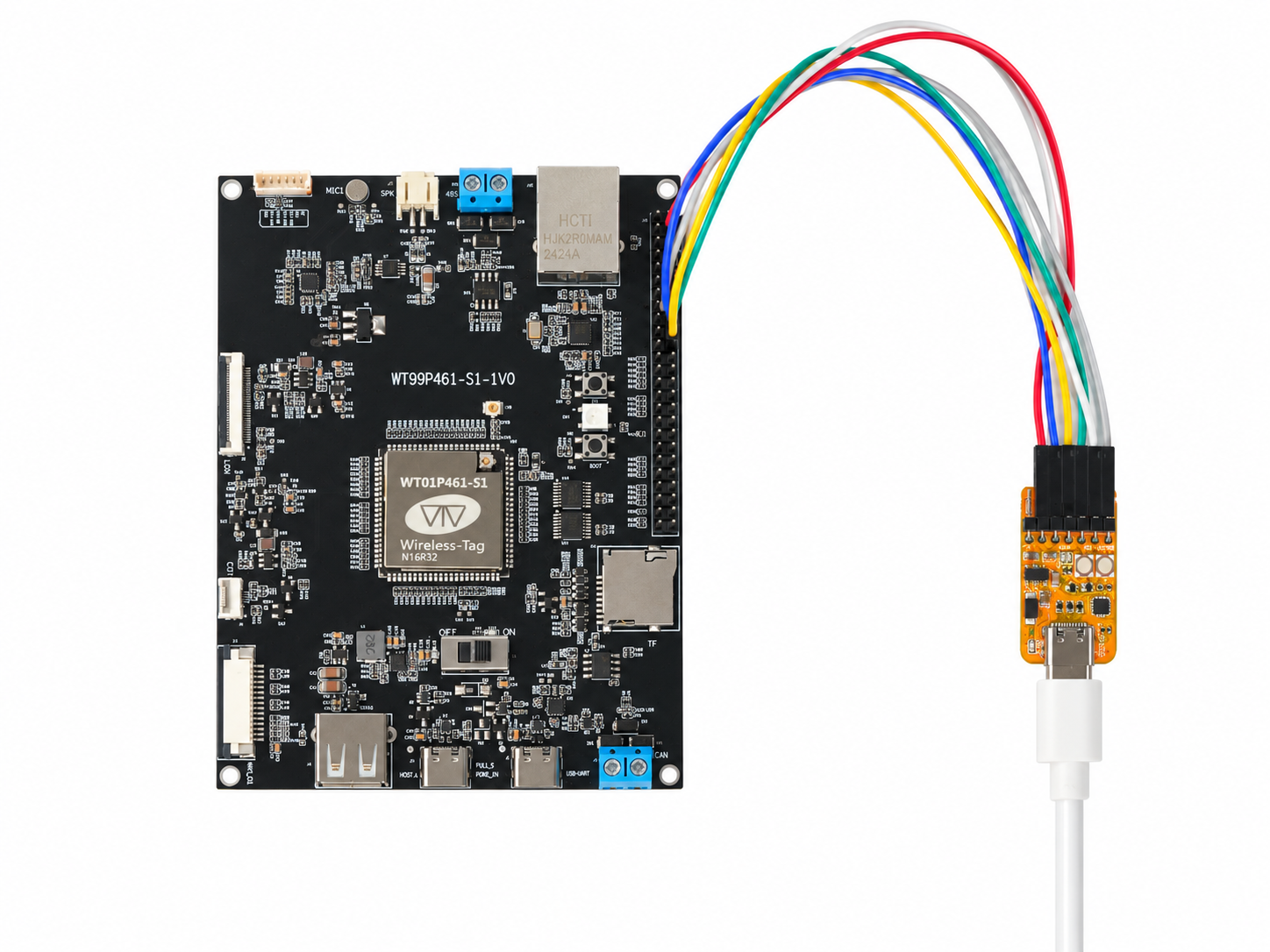
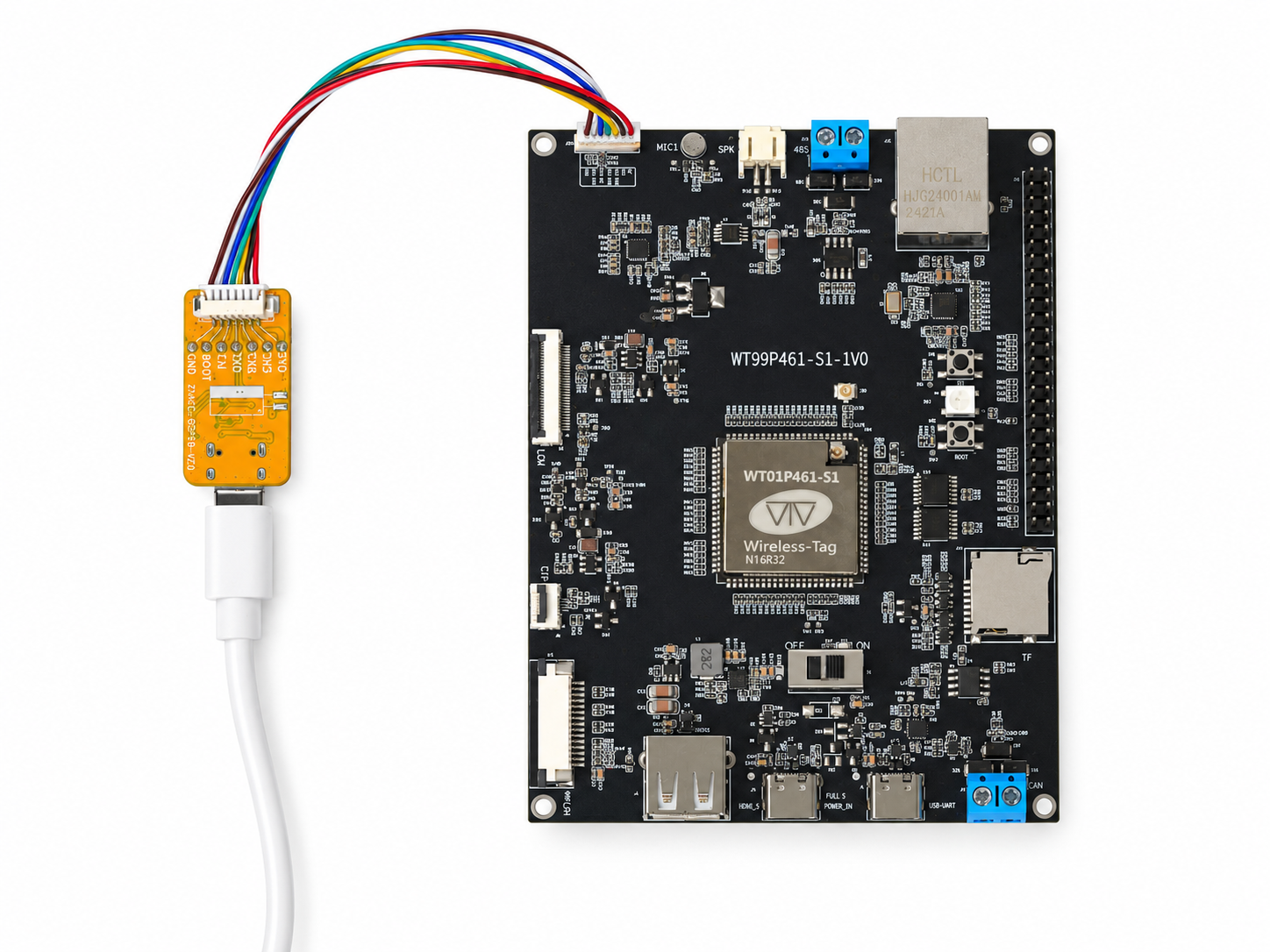
Connect the Wireless-tag serial programmer to J16, then use a USB Type-C data cable to connect the programmer's USB Type-C port to your computer. You can then use ESP-TOOL to flash firmware to the ESP32-C61 and debug it over the serial port.
ESP32-C61 Flashing Connection Diagram
Alternatively, use Dupont wires to connect the C61_EN, C61_TXD, C61_RXD, C61_IO9, 3V3, and GND pins on the J20 header to a serial programmer connected to your computer, as shown below. Turn on the board's power switch to power the board and place the ESP32-C61 in download mode. You can then use ESP-TOOL to flash firmware to the ESP32-C61 over the serial port.
ESP32-C61 Flashing Connection Diagram